
5 Brilliant Android Quick Settings Shortcuts to Speed Up Everyday Tasks
Introduction
Android smartphones offer a wide range of features, but navigating through settings menus for routine tasks can be time-consuming, especially for beginners. Fortunately, Android’s Quick Settings panel provides shortcuts that make everyday actions faster and more convenient. In this article, we’ll explore five brilliant Android Quick Settings shortcuts that can transform your smartphone experience by saving time and simplifying common activities.
Understanding Android Quick Settings
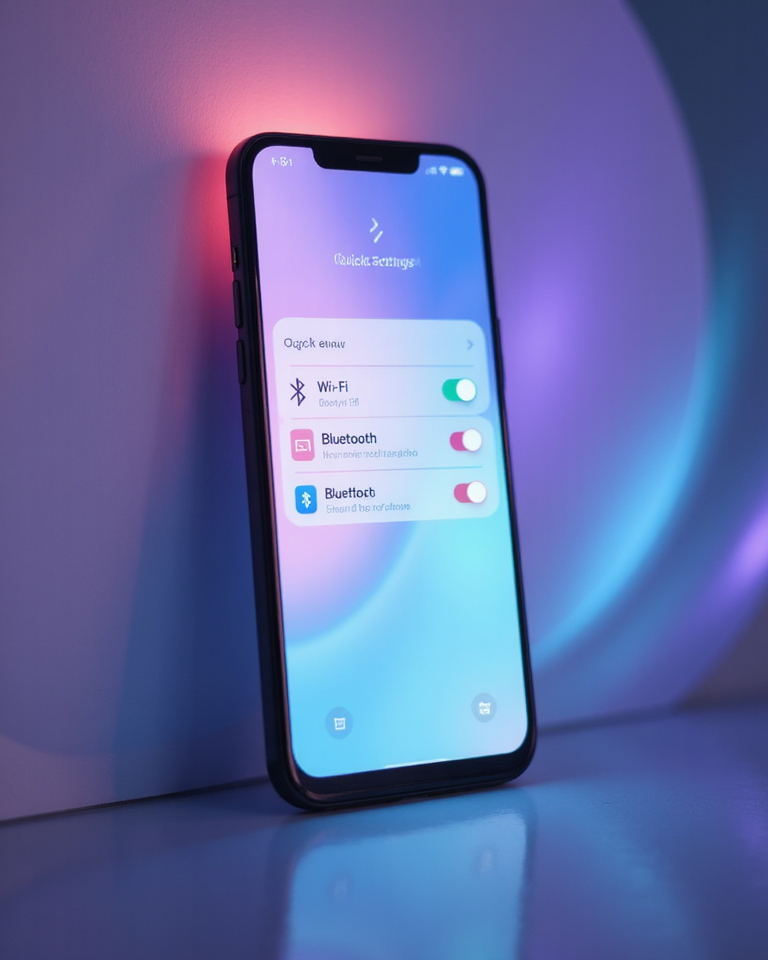
Before diving into the shortcuts, it’s important to understand what Android Quick Settings are. Quick Settings is an accessible panel that lets you toggle key functions such as Wi-Fi, Bluetooth, Airplane mode, and more without opening the full Settings app. You can access it by swiping down from the top of your screen, often twice to reveal all available toggles.
The Quick Settings panel is customizable — you can add, remove, or rearrange shortcuts to suit your preferences. This flexibility enables you to streamline your most-used tasks into one easily accessible place.
Why Use Quick Settings Shortcuts?
Quick Settings shortcuts provide fast, one-tap access to powerful features and can:
- Save time by avoiding multiple menu taps.
- Simplify routine tasks for beginners.
- Enhance productivity by keeping settings at your fingertips.
- Reduce distractions by limiting the need to open multiple apps.
1. Toggle Wi-Fi and Mobile Data Easily
One of the most frequent tasks on any smartphone is controlling your internet connection. With Quick Settings, switching between Wi-Fi and mobile data is simple.
- Swipe down twice from the top of your screen or swipe down with two fingers to fully open Quick Settings.
- Tap the Wi-Fi icon to turn it on or off.
- Long-press the Wi-Fi icon to open its settings and choose a network.
- Tap the Mobile Data icon (if available) to toggle your cellular data on or off.
Example: When you enter a café with free Wi-Fi, toggle Wi-Fi on with a single tap, instead of searching through Settings.
Common Mistakes
- Assuming Wi-Fi is on without checking connection status can cause slowdown or failure to load web pages.
- Confusing airplane mode with Wi-Fi toggle — airplane mode disables all wireless connections including Wi-Fi.
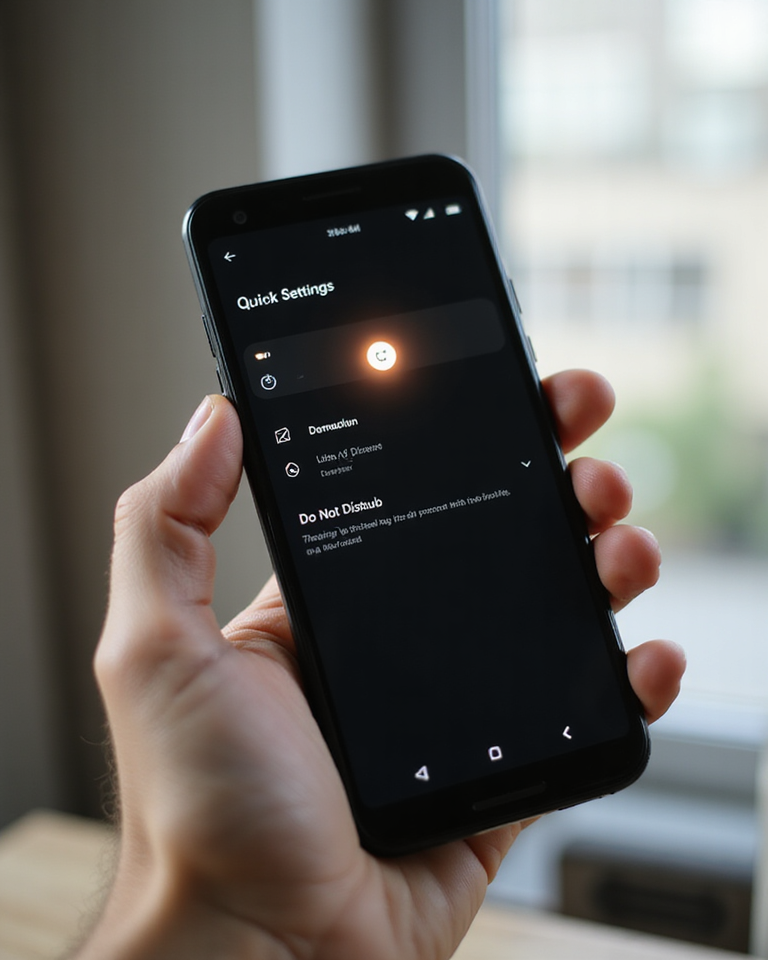
2. Use ‘Do Not Disturb’ Shortcut to Manage Notifications
‘Do Not Disturb’ mode mutes most notifications, calls, and alerts, making it essential during meetings, sleep, or focused work times.
- Open Quick Settings from the top of the screen.
- Tap the ‘Do Not Disturb’ icon to turn it on.
- Long-press it to customize duration and exceptions like allowing calls from favorites.
Example: Activate Do Not Disturb before entering the cinema to avoid interruptions.
Common Mistakes
- Forgetting to turn off Do Not Disturb can cause missed urgent calls or messages.
- Not configuring exceptions for important contacts.
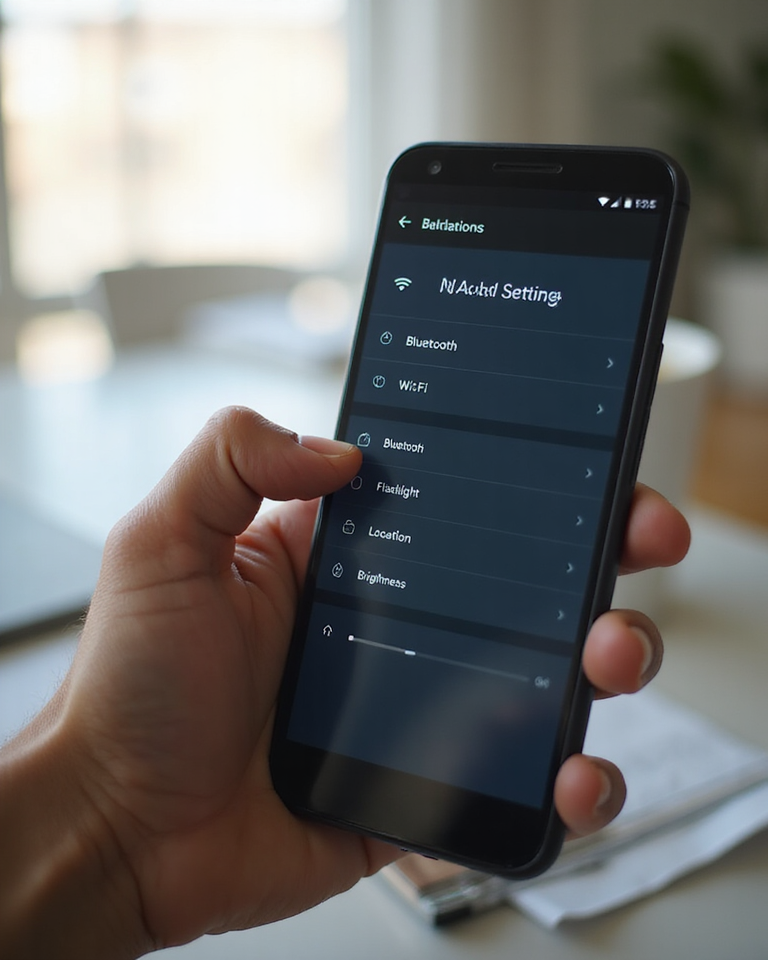
3. Quick Access to Flashlight
Whether searching for keys in a dark space or reading at night, the flashlight shortcut is extremely handy.
- Swipe down to open Quick Settings.
- Tap the flashlight icon to toggle it on or off.
For some devices, you can add the flashlight shortcut if it’s not present by customizing the Quick Settings panel.
Practical Tip
Using the flashlight shortcut saves you from fumbling with the camera app or reaching for a physical torch.
4. Screen Rotation Toggle for Better Viewing
The screen rotation toggle lets you lock or unlock screen rotation, so your display orientation matches your preference.
- Open Quick Settings.
- Tap the screen rotation or auto-rotate icon.
- If the icon shows a locked screen, rotation is disabled; tapping it unlocks rotation.
Example: Lock screen orientation while reading in bed to prevent accidental rotation.
Common Mistake
Not adjusting screen rotation settings can be frustrating during video watching or gaming.
5. Battery Saver Shortcut to Extend Usage
When your battery is low and you can’t charge immediately, the Battery Saver mode reduces background activity to extend battery life.
- Access Quick Settings.
- Tap the Battery Saver icon to enable it.
- To customize, long-press the icon and adjust when Battery Saver activates automatically.
Example: Use Battery Saver during travel when charging options are limited.
Important Notes
- Battery Saver limits some functions like background sync and location services.
- Enable it only when necessary to maintain functionality.
How to Customize Your Quick Settings Panel
To make the most of these shortcuts, customizing the Quick Settings panel is recommended.
- Swipe down twice from the top of the screen to open Quick Settings fully.
- Tap the pencil icon or “Edit” button (location varies by device).
- Drag and drop shortcuts to add, remove, or reorder them.
- Tap the back button or done to save changes.
This custom setup ensures your most-used shortcuts are always ready at a tap.
Troubleshooting Common Quick Settings Issues
Occasionally, you might find Quick Settings shortcuts unresponsive or missing. Here’s how to troubleshoot:
- Restart your phone: A simple reboot can fix minor glitches.
- Check for system updates: Outdated software might cause Quick Settings problems.
- Reset Quick Settings layout: Remove and re-add shortcuts via customization.
- Clear cache: Clear cache of System UI or Settings app from app settings.
Advanced Tips and Productivity Boosters
For more experienced users looking to maximize efficiency, consider these:
- Use third-party apps: Some apps let you create custom Quick Settings tiles for specialized functions.
- Gesture controls: Pair Quick Settings with gesture navigation to reduce taps further.
- Voice commands: Combine with Google Assistant to trigger Quick Settings remotely.
Frequently Asked Questions (FAQ)
Q1: Can I add shortcuts not shown by default?
Yes, most Android versions allow adding additional shortcuts like VPN, Nearby Share, or even custom app shortcuts via Quick Settings customization.
Q2: Why are some Quick Settings icons missing?
Manufacturers sometimes limit the default shortcuts available, or some settings may be unavailable based on hardware or software version.
Q3: Does using Quick Settings drain more battery?
No, toggling settings on or off through Quick Settings does not impact battery life more than changing them through the regular Settings app.
Q4: Can Quick Settings be accessed from the lock screen?
Generally, yes, but security settings may restrict access to certain toggles when the phone is locked.
Conclusion
Mastering Android Quick Settings shortcuts is a practical way to speed up your smartphone tasks, improve convenience, and enhance productivity without diving deep into menus. For beginners, these shortcuts simplify common actions like managing connectivity, notifications, and device functions. By customizing your Quick Settings panel and using the shortcuts we’ve covered, everyday tasks become faster and smoother, helping you get the most from your Android device with minimal effort.
Exploring Additional Quick Settings Shortcuts
Beyond the five essential shortcuts discussed, Android offers many more Quick Settings toggles that can further optimize your smartphone experience.
Toggle Bluetooth
Bluetooth is vital for connecting to wireless headphones, speakers, and other devices. The Quick Settings Bluetooth toggle allows you to activate or deactivate Bluetooth without diving into settings menus.
- Swipe down to access Quick Settings.
- Tap the Bluetooth icon to enable or disable the connection.
- Long-press the Bluetooth icon to see paired devices and connect or disconnect quickly.
This shortcut is particularly helpful when switching between different Bluetooth devices throughout the day.
Enable Airplane Mode
Airplane Mode disables all wireless communications on your phone, including cellular, Wi-Fi, and Bluetooth.
- Open Quick Settings.
- Tap the Airplane Mode icon to toggle it on or off.
Use this shortcut to quickly comply with airline regulations or to reset wireless connections when experiencing network issues.
Toggle Location Services
Location services control apps’ ability to access your device’s GPS data.
- Access Quick Settings.
- Tap the Location icon to enable or disable services.
Disabling location can save battery life and protect privacy when GPS is not needed.
Manage Hotspot
If you need to share your phone’s internet connection with other devices, the Hotspot shortcut lets you activate or deactivate it swiftly.
- Swipe down to open Quick Settings.
- Tap the Hotspot icon to toggle the function.
This is convenient during travel or in places without Wi-Fi.
How to Maximize Efficiency With Quick Settings
Using Quick Settings efficiently can go beyond just toggling functions. Here are some tips to enhance your Android workflow:
- Group shortcuts by use: Place connectivity toggles like Wi-Fi, Bluetooth, and Mobile Data together for quick access during travel.
- Set custom tiles with third-party apps: Apps like Power Shade or Tile Shortcuts let you add personalized actions tailored to your needs.
- Combine Quick Settings with automation tools: Apps such as Tasker or IFTTT can trigger Quick Settings changes automatically based on location, time, or other conditions.
- Shortcut access via gestures: Many modern Android phones let you open Quick Settings with edge swipes or specific gestures, reducing navigation steps.
Security Considerations When Using Quick Settings
While Quick Settings improves access, it’s essential to maintain device security:
- Lock sensitive toggles: Some security settings let you control which Quick Settings are accessible on the lock screen, preventing unauthorized changes.
- Enable screen lock: Always use a PIN, pattern, or biometric lock to secure your phone.
- Be cautious with location and hotspot toggles: Turning on these without oversight can expose your device or network.
Regularly review your Quick Settings configuration to balance convenience with safety.
What’s New in Quick Settings With Recent Android Versions?
Android updates continuously improve Quick Settings functionality:
- More customization: Newer Android versions allow easier rearranging and addition of tiles.
- Integration with smart home: Some tiles now control smart home devices directly from the Quick Settings panel.
- Adaptive brightness and media controls: Quick Settings may automatically show controls related to your current activity, like music or screen brightness.
Staying updated with your Android version ensures you enjoy the latest Quick Settings enhancements.
Summary
The Android Quick Settings panel is a powerful tool that can be customized to fit your daily routine and needs. Incorporating additional shortcuts like Bluetooth, Airplane Mode, Location Services, and Hotspot can further streamline your interactions, while security best practices will keep your device safe. Leveraging these features along with automation and gesture controls creates a flexible, efficient user experience that saves time and reduces hassle.
By diving deeper into Quick Settings and continuously refining your panel setup, you make your Android device a more effective companion, adapted to your lifestyle and work habits.
Leave a Reply