
How to Improve Your Online Privacy and Security in Google Chrome: A Beginner’s Guide

Introduction
In today’s digital age, online privacy and security are more important than ever. Google Chrome, being the most widely used web browser in the world, is a primary gateway to your online life. Understanding how to enhance your privacy and security while using Chrome is essential for protecting your personal information, avoiding cyber threats, and maintaining your digital freedom.
This comprehensive guide walks beginners through practical, step-by-step methods to improve online privacy and security specifically in Google Chrome. You’ll learn key settings, useful extensions, common mistakes to avoid, troubleshooting tips, and recommended next steps to safeguard your browsing experience.
Why Is Online Privacy and Security Important in Google Chrome?
Every time you surf the web, your browser collects data such as your browsing history, cookies, location, preferences, and sometimes even login credentials. Malicious actors can exploit weak security or careless behavior to steal your information or track your online activities. Google Chrome, due to its market share, is a popular target for cyber threats.
Improving privacy in Chrome helps reduce targeted ads, stops unwanted trackers, and prevents third parties from accessing your personal data. Enhancing security helps block phishing sites, malware, and unauthorized access to your accounts.
Step 1: Update Google Chrome Regularly
The foundation of good online security is using the latest software version. Google regularly releases updates for Chrome to patch vulnerabilities and improve defenses.
- Click the three-dot menu in the top-right corner of Chrome.
- Select Help > About Google Chrome.
- Chrome will automatically check for updates and install them if available.
- Restart the browser to apply updates.
Keeping Chrome updated ensures you have the latest security fixes against emerging threats.
Step 2: Adjust Privacy and Security Settings in Chrome
Chrome offers granular controls for privacy and security. Here’s what beginners can configure right away:
- Cookies and Site Data: Go to Settings > Privacy and security > Cookies and other site data. Choose Block third-party cookies to reduce cross-site tracking.
- Safe Browsing: In Privacy and security, select Security and ensure Enhanced protection is enabled. This mode proactively warns about risky websites and downloads.
- Do Not Track: Toggle on Send a “Do Not Track” request with your browsing traffic in the Privacy and security settings. While not all sites honor this, it is an added privacy signal.
- Site Permissions: Review permissions like location, camera, and microphone access under Privacy and security > Site Settings. Disable access for sites that don’t need it.
Step 3: Manage Passwords Securely
Passwords are gateways to your online accounts. Chrome includes a built-in password manager, which can be useful but requires care.
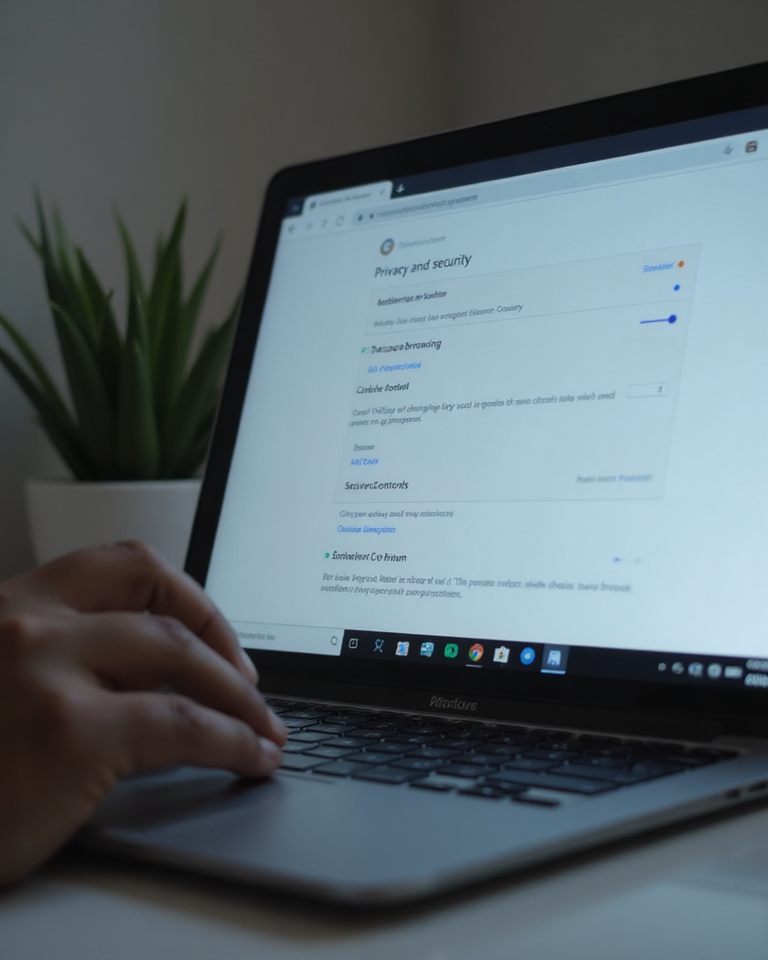
- Go to Settings > Autofill > Passwords.
- Enable Offer to save passwords and Auto Sign-in cautiously. Consider disabling auto sign-in if you share your device.
- Use Chrome Password Checkup tool (under passwords) to identify compromised or weak passwords.
- Consider using a separate trusted password manager app for added security.
Never reuse passwords across multiple sites, and opt for long, unique passwords.
Step 4: Use Privacy and Security Extensions Wisely
Extensions can enhance Chrome’s privacy and security, but choose carefully as some add risks.
Recommended extensions for beginners include:
- uBlock Origin: Efficient ad and tracker blocker.
- HTTPS Everywhere: Forces websites to use secure HTTPS connections.
- Privacy Badger: Automatically blocks invisible trackers.
- Bitwarden or LastPass: Secure password managers if you don’t want to rely on Chrome’s built-in feature.
Tip: Avoid installing many extensions; each adds potential vulnerabilities. Only install well-reviewed, reputable ones.
Step 5: Manage Your Browsing Data
Regularly clearing browsing data helps reduce your digital footprint and prevents unwanted tracking.
- Click the three-dot menu > Settings > Privacy and security > Clear browsing data.
- Select a time range (e.g., last hour, 24 hours, all time) and the types of data to clear — typically cookies, cached images, and browsing history.
- Confirm by clicking Clear data.
You may also want to use Chrome’s Incognito Mode for browsing sessions where you prefer no data saved locally.
Step 6: Avoid Common Privacy and Security Mistakes
Many beginners unintentionally compromise their privacy or security. Avoid these pitfalls:
- Ignoring Warnings: Don’t bypass security warnings or ignore alerts about unsafe sites.
- Using Weak Passwords: Avoid simple passwords like “password123” or your birthday.
- Accepting Too Many Permissions: Only grant site permissions necessary for functionality.
- Downloading Untrusted Extensions: Only install extensions from official Chrome Web Store with good reviews.
- Staying Logged In Everywhere: Regularly log out from sites and avoid saving passwords on shared devices.
Troubleshooting Common Issues
Problem: Websites don’t load or behave oddly after tweaking privacy settings or extensions.

Solution: Disable extensions one-by-one to identify the culprit. Check if cookies are allowed for the site. Reset settings if problems persist (Settings > Advanced > Reset and clean up).
Problem: Chrome is slow or crashes.
Solution: Clear cache and browsing data. Limit number of open tabs and extensions. Update Chrome to latest version.
Problem: Can’t sign in or autofill not working.
Solution: Check Autofill and password manager settings. Make sure sync is enabled and you’re logged into your Google account properly.
Additional Practical Tips
- Use two-factor authentication (2FA) on your Google account and other important sites for an extra layer of security.
- Avoid public Wi-Fi networks for sensitive activities, or use a reputable VPN service to encrypt your connection.
- Regularly review privacy policies of websites you use to stay informed about data collection practices.
- Consider disabling third-party cookies completely or using privacy-focused browsers for more sensitive browsing.
Understanding Chrome’s Privacy Sandbox
Google Chrome is actively developing new technologies to balance user privacy with the needs of advertisers through something called the Privacy Sandbox. This initiative aims to replace third-party cookies with privacy-preserving alternatives that limit cross-site tracking while still allowing publishers to monetize content.
While the Privacy Sandbox is still evolving, keeping informed about its changes will help you understand how your data is managed in the future. For now, combining robust settings with trusted extensions remains the best approach to control your online privacy.
How to Secure Your Google Account Linked with Chrome
Since Chrome integrates deeply with your Google Account for syncing bookmarks, passwords, and history, securing that account is critical:
- Enable Two-Step Verification: Add extra protection by requiring a second method (like a phone prompt or authenticator app) to sign in.
- Review Account Activity: Regularly check your Google Account’s security dashboard for unusual sign-in attempts or device access.
- Update Recovery Options: Ensure your recovery phone number and email address are current to regain access if locked out.
- Use a Strong Password: Choose a complex password unique to your Google Account.
These practices make your synced data more secure across Chrome and other Google services.
Using Incognito Mode Effectively
Incognito Mode is useful for temporarily limiting data saved on your device:
- It prevents Chrome from saving browsing history, cookies, site data, and form inputs after closing all incognito windows.
- It does not provide anonymity from internet service providers, employers, or the websites you visit.
- Use Incognito Mode for activities such as logging into multiple accounts simultaneously or when using a public or shared computer.
Although not a full privacy solution, it complements your overall security habits by minimizing local tracking.
Customizing Site Permissions for Better Control
Chrome lets you control specific permissions granted to websites such as location, camera, microphone, and notifications. To customize:
- Navigate to Settings > Privacy and security > Site Settings.
- Review each permission category and consider disabling access for sites that do not require it.
- You can also set exceptions for trusted sites.
Regularly auditing these permissions reduces potential privacy leaks and unwanted access to your device’s hardware.
Backing Up and Exporting Your Passwords
Although Chrome provides a basic password manager, keeping a backup can protect you in case of accidental data loss or switching browsers:
- Go to Settings > Autofill > Passwords.
- Click on the three-dot menu next to “Saved Passwords” and select Export passwords.
- Store the exported file securely, preferably encrypted, and avoid sharing it.
Regular backups help secure your access credentials and ease transitions if you upgrade or change your device.
Protecting Your Privacy on Shared Devices
If you use Chrome on shared or public computers, take extra precautions to guard your privacy:
- Always log out of your accounts when finished.
- Avoid saving passwords or autofill data on shared devices.
- Use Incognito Mode to prevent local data storage.
- Consider creating a separate browser user profile for shared use with limited data and permissions.
These steps reduce chances of your information being exposed to other users.
Leave a Reply