
7 CarPlay Features Android Auto Users Will Love: A Practical Guide
Introduction
If you are an Android Auto user, you might wonder what you’re missing out on when it comes to Apple’s CarPlay system. Apple CarPlay offers several convenient and innovative features that enhance driving safety, entertainment, and connectivity, which many iPhone owners overlook. This article explores seven standout CarPlay features that Android Auto users will appreciate. We will explain how they work, guide you step-by-step on using them, discuss common pitfalls, and provide practical advice for an upgraded in-car tech experience.
Understanding the Basics: What Are CarPlay and Android Auto?
Both CarPlay and Android Auto are smart driving interface systems that mirror your smartphone functions on your vehicle’s infotainment screen. While Android Auto is compatible with Android phones, CarPlay works exclusively with iPhones. Each system integrates navigation, calls, messaging, and media controls designed for easier, hands-free operation while driving. However, CarPlay has unique features and design choices that many iPhone users don’t fully explore. Let’s dive into those to see what you can gain.
Main Topic: 7 CarPlay Features Android Auto Users Will Love
1. Wireless CarPlay Connection
One of the most appreciated features of CarPlay is its ability to connect wirelessly to your car’s infotainment system, unlike many Android Auto setups which still require a USB cable.
How to use it:
- Ensure your car supports wireless CarPlay.
- On your iPhone, go to Settings > General > CarPlay.
- Select your car from the list of available vehicles.
- Enable Bluetooth and Wi-Fi on your phone.
- Your iPhone will automatically connect wirelessly when you enter the car.
Common mistake: Forgetting to enable Bluetooth or Wi-Fi can prevent connection. Also, some older car models don’t support wireless CarPlay.
2. Siri Voice Control Integration
CarPlay’s Siri integration allows hands-free operation not just for calls and messages but for many apps such as sending texts, playing music, getting directions, and more.
How to use it: Press and hold the voice control button on your steering wheel or say “Hey Siri” to activate Siri.
Example: Saying “Navigate home” launches Apple Maps with directions instantly.
Tip: Make sure Siri is enabled in your iPhone settings under Settings > Siri & Search.
3. Third-Party App Compatibility
CarPlay supports a wide range of third-party apps including Spotify, Audible, Pandora, WhatsApp, and more, emphasizing a broader app ecosystem experience than some Android Auto setups.
How to check available apps and enable them:
- On your iPhone, go to Settings > General > CarPlay.
- Select your car.
- Tap Customize to add or remove apps.
Practical advice: Customize your CarPlay screen by prioritizing frequently used apps for quick access.
4. Dashboard View with Split Screen Support
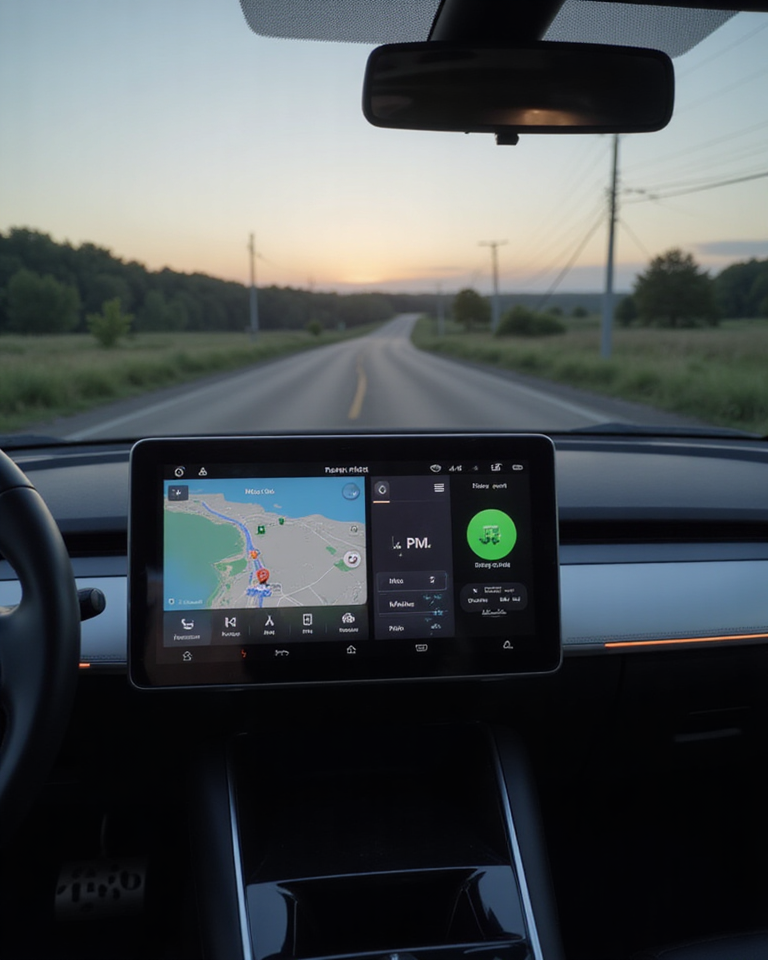
CarPlay’s dashboard mode provides a split-screen view showing navigation, music, and recent calls or messages simultaneously. This multi-task friendly interface can enhance your driving experience by reducing the need to flip between screens.
How to enable and use: When CarPlay is active, tap the dashboard icon to switch views. You can interact with the different panes seamlessly.
Common pitfall: Not all vehicles support this split-screen dashboard view, so check your vehicle’s infotainment specifications.
5. Calendar and Event Integration
CarPlay can display your calendar events directly on the screen, allowing you to check upcoming appointments and get navigation directions to meeting places easily.
Using calendar on CarPlay:
- Ensure your calendar app is synced to your iPhone.
- Open CarPlay, and tap the calendar icon.
- Tap an event to see details or get directions.
Benefit: Helps you stay organized without needing to pull out your phone while driving.
6. Enhanced Maps with Look Around and Real-Time Traffic
Apple Maps on CarPlay offers detailed 3D “Look Around” street views and real-time traffic updates that can provide more context than Google Maps on Android Auto in some cases.
How to use Look Around: While navigating, tap on the 3D map icon to switch to Look Around mode.
Tip: Use traffic information for rerouting proactively to avoid delays.
7. Do Not Disturb While Driving Mode
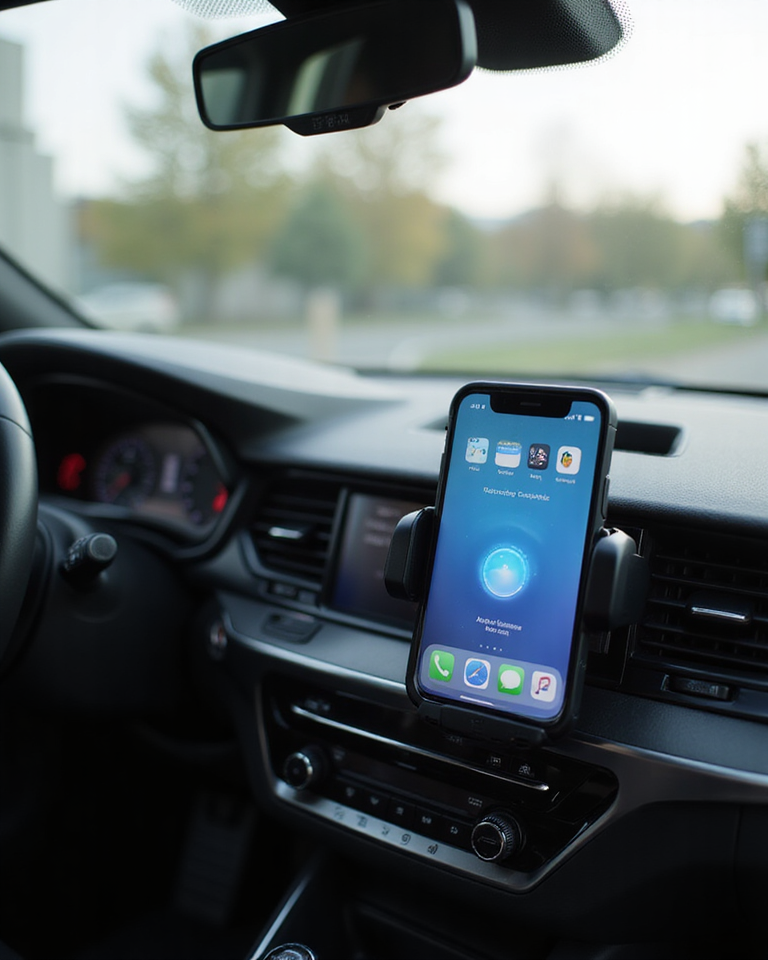
This safety feature on CarPlay can automatically silence notifications and send automatic replies while you drive, reducing distractions.
How to enable:
- Go to your iPhone settings.
- Tap Do Not Disturb.
- Choose Activate Automatically or manually activate through Control Center.
Example: When driving, calls and texts will be muted, and your contacts will receive an auto-reply stating you’re driving.
Practical Next Steps: How to Explore These Features on Your iPhone and Car
To fully enjoy these CarPlay benefits, make sure your iPhone is updated to the latest iOS version and your car’s infotainment system supports the latest CarPlay version. Regularly explore and customize CarPlay apps through your iPhone’s settings.
For wireless connection, verify your car’s manual or manufacturer website for CarPlay compatibility and enable Bluetooth and Wi-Fi on your phone before entering the car.
Try using Siri for simple tasks to free your hands and eyes from distractions. And remember to configure Do Not Disturb While Driving to increase your road safety.
Troubleshooting Common Issues
Problem: CarPlay won’t connect wirelessly or at all.
Solutions:
- Restart your iPhone and car infotainment system.
- Check that both Wi-Fi and Bluetooth are turned on.
- Forget your car in Bluetooth settings and re-pair.
- Check for iOS updates.
- Try a wired connection to isolate issues.
Problem: Siri does not respond.
Solutions:
- Ensure “Hey Siri” is enabled in your iPhone settings.
- Check microphone access permissions.
- Try pressing the hardware voice control button on the steering wheel.
Problem: Some apps not showing on CarPlay.
Solutions:
- Go to Settings > General > CarPlay, select your car, and customize the app list.
- Check the app is updated and compatible with CarPlay.
Additional CarPlay Tips and Tricks for Android Auto Users
Utilizing Apple Music and Personalized Playlists
Unlike some Android Auto configurations, CarPlay integrates deeply with Apple Music, offering personalized playlists, curated mixes, and a seamless library experience for iPhone users. You can create and access your playlists on the go, enabling a more tailored music experience during your drives.
How to get started: Open the Music app on CarPlay and explore the “For You” section featuring personalized recommendations based on your listening habits.
Tip: Use Siri to play specific genres, artists, or mood-based playlists without needing to touch the screen.
Using Messages and Announce Notifications
CarPlay supports message reading and replying through Siri, enhancing your safety by allowing communication without manual typing. Additionally, the Announce Messages feature reads incoming messages aloud as notifications, ensuring you won’t miss important communications while keeping your eyes on the road.
How to enable Announce Messages: Go to Settings > Notifications > Announce Messages with Siri on your iPhone and toggle the feature on.
Benefit: Stay connected safely with minimal distraction.
Customizing Appearance Settings
CarPlay offers a range of appearance options to suit day and night driving conditions. You can manually switch between light and dark modes or set it to automatic, which changes based on the time of day.
How to adjust: On your iPhone, go to Settings > Display & Brightness and choose the CarPlay appearance preferences.
Practical advice: Use dark mode during nighttime drives to reduce glare and improve visibility.
Using CarPlay with Multiple Vehicles
CarPlay allows you to configure different settings and app arrangements for each car you own or regularly use. This means that your customizations, favorite apps, and preferences are stored per vehicle, providing a seamless experience when switching between cars.
How to manage: In your iPhone’s CarPlay settings, select each vehicle separately to customize the interface and app layouts.
Privacy and Security Considerations
Privacy is a significant benefit when using CarPlay. Since it runs through your iPhone, data is not stored on the vehicle’s infotainment system. Notifications, messages, and app usage remain connected to your phone, which generally has stronger security protocols compared to many car systems.
Tip: Always unlock your phone and allow CarPlay access only when you trust the vehicle and its users.
Security advice: When selling or returning a vehicle, make sure to disconnect CarPlay and erase the saved settings to protect your personal information.
Future Developments and Updates
Apple continuously improves CarPlay with regular iOS updates, adding new features, expanding compatibility, and enhancing the overall user experience. Upcoming updates are expected to increase integration with vehicle controls and introduce new widgets and smarter Siri commands.
Stay updated: Keep your iPhone OS updated to take full advantage of the latest CarPlay capabilities.
Conclusion
Apple CarPlay offers intuitive, safety-focused features that many Android Auto users will appreciate. From wireless connectivity and superior Siri integration to advanced map features and Do Not Disturb while driving, CarPlay can substantially improve your in-car experience. By understanding and utilizing these capabilities, you can enjoy safer, more convenient, and connected journeys. Whether you plan to switch platforms or just want to learn more about iPhone’s in-car systems, these CarPlay features are worth exploring today.
Leave a Reply