
How to Control Android App Permissions to Protect Your Privacy

Introduction
Many Android users are unaware that certain settings on their devices could be allowing apps to access far more personal data than intended. This “sneaky” behavior usually stems from default or poorly managed app permissions. In this guide, we will explain exactly how Android app permissions work, why some settings expose more information than they should, and most importantly, how you can control these permissions step-by-step to protect your privacy.
Understanding Android App Permissions
Android apps need permissions to access data or device features like the camera, microphone, contacts, or location. When you install an app and accept its permissions, it gains the ability to use those features. However, some permissions can reveal sensitive data or even allow apps to track your behavior beyond what you expect.
Modern Android versions have improved permission management, but users often grant permissions without realizing their implications. Some permissions are grouped under “sneaky” settings that let apps collect a lot of data silently or share that data between apps.
Why Does This Happen?
Apps request permissions to deliver features, ads, or collect analytics. When permissions are overbroad or poorly restricted, apps can retrieve more data than needed. Also, some third-party apps might request unnecessary permissions, putting your privacy at risk.
Furthermore, some Android settings allow apps to access data even if you think you have prevented them. For example, apps granted access to your device’s storage or location might indirectly reveal additional information.
Important Android Permissions That Can Leak Data
- Location Permissions: Access to precise or approximate location can disclose your movements and habits.
- Storage Permissions: Let apps read or write your files, including photos, documents, and downloads.
- Contacts Permissions: Access your address book, which may contain sensitive information about your social or professional network.
- Microphone and Camera Permissions: Apps can record audio or video, potentially spying on you.
- Phone and SMS Permissions: Access call logs and messages, sensitive for privacy.
How to Check and Modify App Permissions on Android
Follow these step-by-step instructions to audit and control your app permissions on any Android device running Android 6.0 (Marshmallow) and above.
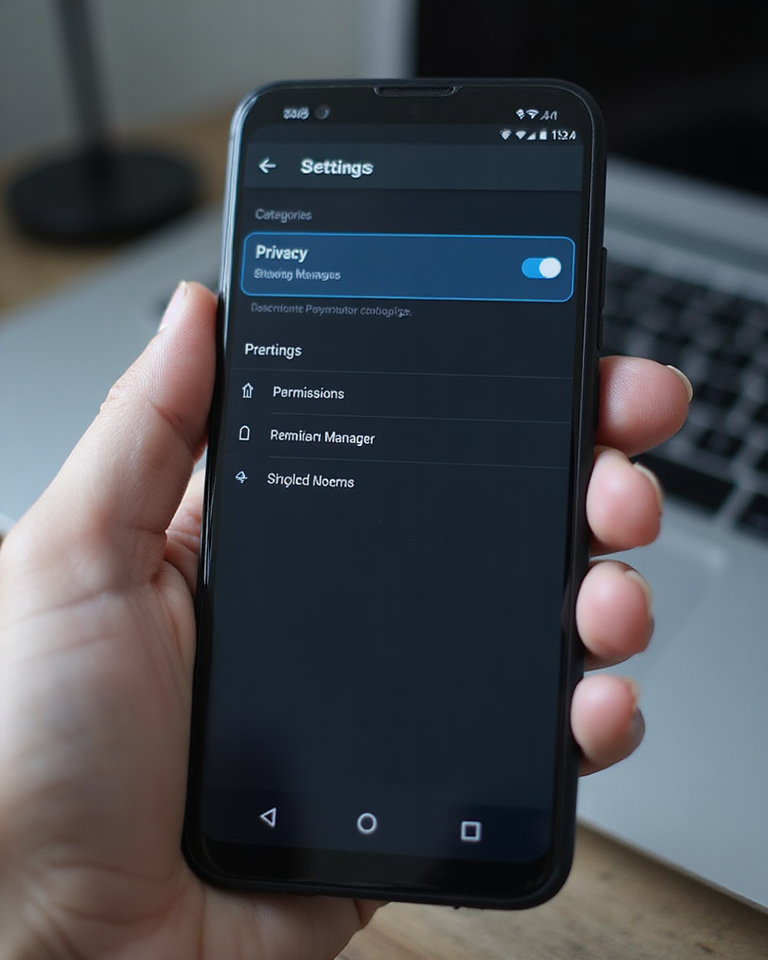
- Open Settings: Swipe down from the top and tap the gear icon or locate the Settings app.
- Go to Privacy or Apps: Depending on your device manufacturer, tap either “Privacy” or “Apps & Notifications”.
- Open Permission Manager: Tap on “Permission manager” or “App permissions” to see all permissions grouped by type.
- Select a Permission Category: For example, tap “Location” to view all apps that accessed your location.
- Review Apps Listed: You will see which apps have permission to use that feature, along with the current status (Allowed, Denied, or Allowed only while using app).
- Change Permissions: Tap an app to modify its permission. You can choose to Allow, Deny, or allow only when the app is in use.
- Repeat for Other Permissions: Check other critical permissions such as Storage, Contacts, Microphone, and Camera.
Examples of Controlling Permissions Effectively
Suppose you use a weather app that requests location and storage access. If you want the app only to see your location while you use it, choose “Allow only while using the app.” Deny storage permission unless you are sure it is essential.
Another example is a social media app requiring camera and microphone access. You can deny these by default and enable them only when taking a photo or recording a video in-app.
Common Mistakes to Avoid When Managing Permissions
- Granting All Permissions at Install: Apps often request multiple permissions upfront. Avoid blindly accepting them. Review each permission carefully.
- Neglecting Permission Updates: After app updates, permissions may change. Periodically review permissions to prevent unauthorized access.
- Ignoring “Special App Access”: Some apps request advanced permissions like overlay, battery optimization exemptions, or unrestricted data access. Don’t overlook these in Settings under “Special app access.”
Troubleshooting Permission Issues
Sometimes restricting permissions can cause apps to malfunction. If an app stops working correctly after denying permissions:
- Review which permissions are absolutely necessary for the app’s main features.
- Temporarily allow required permissions and test for functionality.
- Consider alternative apps that respect your privacy better.
Additional Privacy Tips to Protect Your Android Data
Besides controlling app permissions, consider these additional privacy practices:
- Use Google Play Protect: Regularly scan apps for malware.
- Install apps only from trusted sources: Prefer Google Play Store and avoid sideloading APKs.
- Keep your Android system updated: Security patches will protect against vulnerabilities.
- Limit background data: Restrict apps from using data in the background if unnecessary.
- Use VPNs cautiously: VPNs encrypt data but choose reputable providers to avoid new risks.
Utilizing Android’s Advanced Permission Controls
Beyond the basic permission settings, Android offers advanced privacy controls that let you manage permissions on a more granular level. For example, the “Permission Usage” feature shows you when and how frequently an app accesses specific permissions. This insight helps you identify apps that may be abusing permissions or collecting data in the background without your active use.
To access this feature, navigate to Settings > Privacy > Permission manager > Permission usage. Here, you can review detailed logs and decide whether to revoke permissions or change their access mode based on actual app behavior.
Auto-Reset Permissions
Starting from Android 11, a useful feature called “Auto-reset permissions” automatically revokes permissions from apps you haven’t used for a few months. This helps prevent dormant apps from silently collecting data in the background. Make sure to enable this option in the app settings by going to Settings > Apps & Notifications > [App name] > Permissions, then toggling “Remove permissions if app isn’t used.” This feature is a convenient privacy safeguard and saves you the effort of manually managing inactive apps.
Understanding “Special App Access” Permissions
Special app access permissions differ from normal permissions as they grant apps access to system-level features that can potentially impact device security or usability. Some of these include:
- Display over other apps: Allows apps to draw on top of other apps, often used by chat heads or pop-up features. However, this can be exploited for phishing attacks or interfering with app interactions.
- Modify system settings: Lets apps change system-level settings like brightness, volume, or Wi-Fi. Be cautious as malicious apps can misuse this privilege.
- Battery optimization exemptions: Prevent certain apps from being limited by battery saver modes, allowing them to run persistently in the background.
- Unrestricted data access: Permits apps to use mobile data without restrictions, which can increase data charges or privacy risks.
It’s important to review these permissions regularly by going to Settings > Apps & Notifications > Special app access and ensuring only trusted apps have such privileges.
Protecting Your Privacy With Third-Party Privacy Tools
In addition to Android’s built-in permission controls, you can enhance privacy by using third-party apps designed for privacy management and app monitoring. These tools often include features like permission audit reports, app usage analytics, and alerts for suspicious behavior.
Some privacy-focused apps provide virtual private network (VPN) services combined with app firewall features, allowing you to block internet access for specific apps to prevent unwanted data transmissions. When selecting these tools, choose ones with good reputations, transparent privacy policies, and clear user reviews.
App Permission Managers
Standalone permission manager apps can offer a user-friendly interface for managing app permissions on a per-app or per-permission basis, sometimes providing batch actions to modify multiple permissions quickly. Remember to download such apps from reputable sources and verify they don’t request excessive permissions themselves.
The Role of App Developer Transparency
Another key aspect of managing permissions effectively is choosing apps from developers who are transparent about their data collection practices. Many privacy-conscious developers provide detailed explanations within their app descriptions or include privacy policies specifying what data is collected and why.
Before installing an app, check customer reviews and developer responses for privacy-related feedback. Apps that over-request permissions without clear justification should be treated with caution. Where possible, prefer open-source apps that allow the community to audit their code and permissions responsibly.
How to Handle App Permissions for Children’s Devices
For parents managing Android devices for children, controlling app permissions is especially critical. Children may unintentionally grant excessive permissions to apps or download apps that collect personal data inappropriately.
Many Android devices now include parental controls that let you restrict app installations, filter content, and control permissions remotely. Tools like Google Family Link allow parents to supervise app activity and permissions, approve downloads, and set screen time limits.
Regularly reviewing permissions on children’s devices helps ensure their privacy and safety, preventing apps from collecting sensitive information or exposing them to inappropriate content.
Best Practices for Routine Permission Audits
Maintaining privacy is an ongoing process. Make it a habit to perform routine permission audits on your Android device. A monthly or quarterly review can help catch newly granted permissions, particularly after app updates or system changes.
During these audits, check for apps that haven’t been used recently and consider revoking their permissions or uninstalling them altogether. Pay special attention to permissions that provide access to location, camera, microphone, and contacts, as misuse of these can lead to significant privacy breaches.
Document your permission settings in a simple log or note to track changes over time and identify patterns, such as specific apps repeatedly requesting new permissions.
Conclusion
Android’s flexible permission system gives you control over your personal data, but many users unknowingly grant apps access to more information than necessary. By regularly auditing app permissions, understanding what each permission entails, and adjusting settings accordingly, you can significantly enhance your privacy and security on your Android device.
Taking proactive steps to manage app permissions effectively is essential in today’s digital landscape to avoid unnecessary data exposure and maintain your privacy.
Leave a Reply