
The First 4 Android Settings You Should Change After a Factory Reset: A Beginner’s Guide
Introduction
Performing a factory reset on your Android smartphone can feel like hitting the refresh button on your device. It wipes all your data and returns your phone to its original state, free from clutter, bugs, or unwanted apps. However, once that reset is complete, many users find themselves overwhelmed by the default settings that Android restores. If you’re new to smartphones or just want to optimize your device quickly, we’ll walk you through the first four essential Android settings you should change after a factory reset.
This guide is designed for beginners and anyone looking to get their Android device running smoothly with better privacy, security, and usability immediately after resetting. Whether you’ve just switched phones or cleared your device to fix issues, these simple tweaks will save you time, improve your experience, and help you avoid common pitfalls.
Why Change Android Settings After a Factory Reset?
A factory reset erases everything — apps, contacts, photos, and personalized configurations. Android then restores factory defaults and may enable settings that compromise privacy or drain battery life without you knowing. Changing a few critical settings early can:
- Protect your privacy and data.
- Limit background apps to save battery and data.
- Enhance security to keep your device safe.
- Improve usability and access to essential features.
Now, let’s dive into the most important settings to adjust immediately.
1. Set Up Screen Lock and Biometrics
Why: Your phone contains personal information, emails, messages, photos, and probably banking apps. Leaving it unprotected after a reset exposes you to risk.
How:
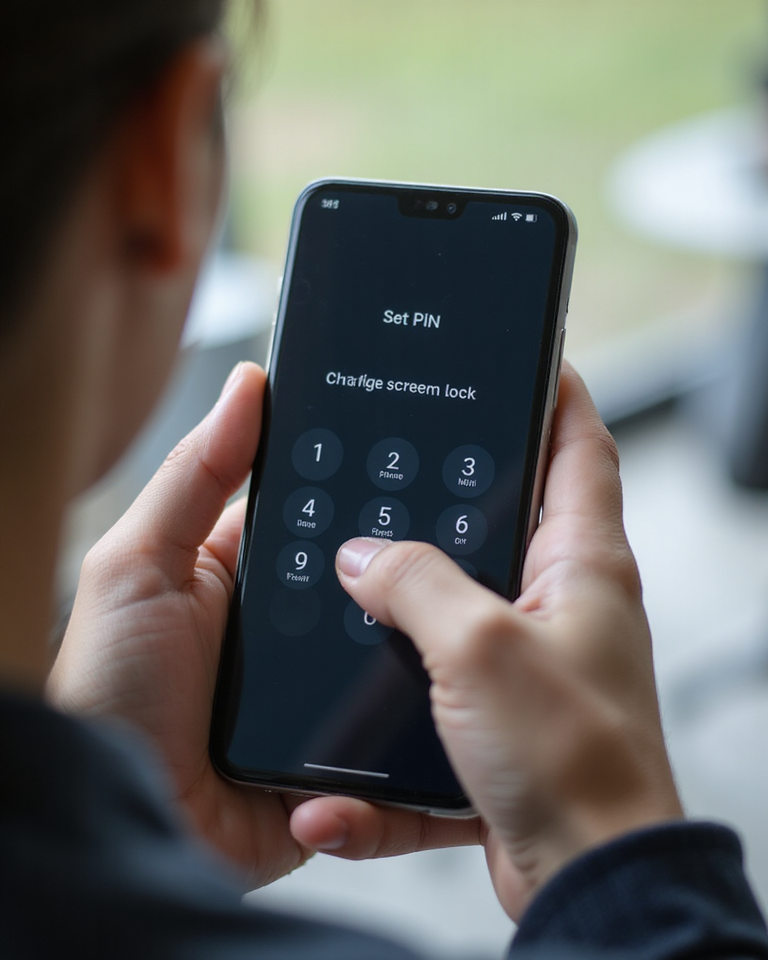
- Go to Settings > Security > Screen lock.
- Choose from options like PIN, pattern, or password. A PIN or password offers stronger protection than a simple pattern.
- Follow the on-screen prompts to set it up.
- Once the screen lock is configured, enable biometrics like fingerprint or facial recognition if your device supports it. Go to Settings > Security > Biometrics and register your fingerprint or face.
Tips: Avoid using obvious PINs like 1234 or birthdays. Biometrics speed up unlocking and add convenience without compromising security.
2. Turn Off “Install Unknown Apps” Permission
Why: After a factory reset, some Android devices may enable the permission for apps to install applications from unknown sources, which can pose a significant security risk. Malicious apps disguised as legitimate ones could otherwise get installed.
How:
- Navigate to Settings > Apps > Special app access > Install unknown apps.
- Review the list of apps allowed to install unknown apps (like browsers or file managers).
- Tap each app and toggle Allow from this source off.
Common mistake: Don’t leave this permission enabled unless you are certain you need to install apps from outside the Google Play Store. Always download apps from trusted sources.
3. Adjust App Permissions for Privacy
Why: Some apps request more permissions than they need, such as access to your location, microphone, camera, or contacts. After a reset, default permissions might be more open to get apps working quickly, but this reduces your privacy.
How:
- Open Settings > Privacy > Permission manager.
- Tap an individual permission category, such as Location or Camera.
- Review which apps have access and revoke permissions for any app that doesn’t need it.
- If you’re unsure, temporarily deny the permission and allow it only if the app’s functionality requires it.
Examples: A game usually does not need access to your microphone or contacts, so those permissions can be turned off. Messaging apps need the microphone for voice messages but not your camera if you don’t use video calls.
4. Optimize Battery and Data Usage Settings
Why: Right after a reset, many apps may run unrestricted in the background, consuming battery life and mobile data unnecessarily. This can drain your battery quickly and cause higher data bills.
How:
- Go to Settings > Battery > Battery optimization.
- Enable battery optimization for apps that you don’t need running at all times.
- Then, navigate to Settings > Network > Data usage > Data saver and turn on the data saver feature to limit apps from using data in the background.
- Optionally, go to Settings > Apps > See all apps, select apps, then choose Mobile data > Disable background data for apps that do not need constant internet access.
Tip: Be cautious not to restrict essential apps like messaging or email if you want to receive timely notifications.
Additional Important Settings to Consider
Once you’ve changed these first four settings, you might also want to check out the following to further improve your Android experience:
- Backup & Restore: Set up Google backup settings to automatically save your contacts, app data, and device settings. Go to Settings > Google > Backup and enable it.
- Automatic Updates: Ensure your apps update automatically via Google Play Store to receive the latest security patches.
- Disable Ad Personalization: Navigate to Settings > Google > Ads and enable Opt out of Ads Personalization to limit targeted ads.
- Display Settings: Adjust screen timeout and brightness to reduce battery consumption.
Optimize Notifications for Better Focus
Notifications can quickly become overwhelming, especially if you’ve just reset your phone and reinstalled many apps that default to sending alerts. Managing notifications helps you stay focused and preserves battery life.
How:
- Go to Settings > Apps & notifications > Notifications.
- Review apps that send frequent or unnecessary notifications.
- Disable notifications for apps that aren’t important or adjust their priority to lower.
- Enable Do Not Disturb mode during work hours or sleep time to limit interruptions.
Tip: Use notification channels (available in newer Android versions) to fine-tune which types of alerts you want from each app without disabling them entirely.
Customize Your Home Screen and Widgets
After a factory reset, your home screen may look very plain or cluttered with default apps. Customizing it can improve usability and mobile experience.
How:
- Long-press on the home screen to add widgets that give quick access to important information like weather, calendar events, or news.
- Organize apps into folders based on categories (e.g., social, productivity, entertainment).
- Use a custom launcher from Google Play Store if you want more customization options such as themes, gestures, and icon packs.
- Remove annoying pre-installed apps or place the ones you use most frequently on the main screen for easy access.
Set Up Google Assistant and Voice Commands
Google Assistant can be very helpful for hands-free tasks, reminders, navigation, and more. Setting it up after a reset ensures you get the most from your device.
How:
- Open the Google app or say “Hey Google” to start setup.
- Follow on-screen prompts to teach Google Assistant your voice.
- Enable personal results in settings to get customized replies.
- Explore voice commands for calls, messages, directions, and controlling smart home devices.
Using voice commands can improve accessibility and multitasking while using your Android.
Secure Your Google Account and Enable Two-Factor Authentication
Your Google account is key to your Android phone’s functionality, syncing your data, contacts, and settings. Securing it is crucial.
How:
- Visit your Google Account security settings by going to Settings > Google > Manage your Google Account > Security.
- Enable two-factor authentication (2FA) to add an extra layer of protection.
- Review connected devices and remove those you don’t recognize.
- Regularly check your account activity and use Google’s Security Checkup tool.
These steps help prevent unauthorized access to your device and personal information.
Manage Storage to Keep Your Device Running Smoothly
A factory reset frees up storage initially, but reinstalling apps and saving data can quickly fill space, slowing down your device.
How:
- Go to Settings > Storage to review how space is used.
- Use the Free up space or Smart Storage features to delete unnecessary files, cached data, or duplicate photos.
- Consider moving photos and videos to cloud storage like Google Photos or external SD cards if your device supports them.
- Regularly clear app caches for apps that consume a lot of storage.
Maintaining good storage management will keep your phone responsive and extend its lifespan.
Stay Safe with Regular Software and Security Updates
Post-reset, it’s vital to keep your Android device updated to patch security vulnerabilities and improve performance.
How:
- Navigate to Settings > System > System update to check for OS updates and install them promptly.
- Enable automatic updates for apps in the Google Play Store settings.
- Review update notes to understand what changes are made and new features added.
Regular updates are a critical part of protecting your phone from threats and ensuring a smooth user experience.
Useful Accessibility Features to Explore
Android includes a range of accessibility features that can enhance the usability of the phone for all users, not only those with disabilities.
- TalkBack: Provides spoken feedback to help users navigate without looking at the screen.
- Magnification: Allows temporary zoom into parts of the screen for better visibility.
- Font and display size: Customize to make text easier to read.
- Interaction controls: Includes features like Assistant Menu or Switch Access to tailor touch input.
Exploring and enabling these features can make your Android device more comfortable and personal to use.
FAQs
How often should I perform a factory reset?
Factory resets should only be used when necessary — such as fixing persistent software issues, preparing a phone for resale, or clearing accumulated junk. Frequent resets can be disruptive and are not generally required.
Will changing these settings affect my phone’s performance?
Properly adjusting privacy and battery settings can improve battery life and protect your data without compromising overall performance. Restricting necessary app permissions or background processes may affect app functionality, so adjust settings thoughtfully.
Can I skip setting up biometrics?
While you can skip biometrics, they offer a convenient and secure way to unlock your device quickly. If available, it is recommended to set them up along with a strong screen lock.
What if I accidentally disable an important permission?
You can always go back to Permission manager in settings and re-enable permissions for apps that require them.
Is it safe to install apps only from Google Play Store?
Yes, Google Play Store apps are screened for malware and safety, making it the safest place to install Android apps. Be cautious and avoid installing APKs from unknown or suspicious sources.
Conclusion
A factory reset is a powerful tool to refresh your Android device, but the default settings afterward may not provide the best security or performance. By focusing on these four critical settings—setting a strong screen lock with biometrics, disabling unknown app installs, reviewing app permissions for privacy, and optimizing battery and data usage—you can significantly improve your device’s safety, efficiency, and usability right away.
These steps are easy to complete, even for beginners, and set the foundation for a more secure and pleasant mobile experience. Take time to explore other settings gradually, but don’t overlook these starting points. Your Android phone will thank you.
Leave a Reply