
How to Clear Computer Cookies: A Step-by-Step 2026 Guide for Beginners

Introduction
If you use the internet regularly, you’ve likely encountered the concept of cookies in your web browser. Cookies are small files websites save on your computer to remember information about your visit. While cookies can improve your browsing experience, storing preferences and login sessions, they can also raise privacy concerns or cause issues if corrupted or outdated. This comprehensive 2026 guide will teach you how to clear computer cookies safely and effectively on various browsers, why it’s useful, common mistakes to avoid, and what to do afterward. Whether you’re a computer beginner or just want a clear refresher, this tutorial will guide you through every step with practical examples and troubleshooting tips.
What Are Computer Cookies and Why Clear Them?
Cookies are pieces of data sent from websites and stored on your computer by your web browser. They help websites remember who you are, your preferences, and other useful details. For example, cookies keep you logged into your favorite social media site or remember items in your shopping cart.
While they serve important functions, cookies can also accumulate over time and cause problems such as:
- Privacy risks: Some cookies track your online activity across multiple sites for advertising and profiling.
- Performance issues: A large buildup of cookies can slow down your browser.
- Outdated data: Cookies saved from previous sessions might be corrupted and cause login or display errors.
- Security concerns: Malicious sites could exploit cookies if your browser is compromised.
Clearing cookies regularly helps protect your privacy and can improve browser performance or fix strange website behavior.
Prerequisites Before Clearing Cookies
Before you clear your cookies, keep in mind:
- Clearing cookies will log you out of most websites and reset preferences.
- Make sure you know your passwords or have them saved securely elsewhere.
- Consider whether you want to clear cookies for all sites or just specific ones.
- Be aware that clearing cookies is different from clearing your browsing history or cache. You might want to clear those too for full cleanup.
How to Clear Cookies on Popular Web Browsers in 2026
1. Google Chrome
- Open Google Chrome.
- Click the three-dot menu icon in the top right corner.
- Select Settings.
- In the left sidebar, click Privacy and security.
- Click Cookies and other site data.
- Click See all cookies and site data.
- To clear all cookies, click Remove all.
- To clear cookies from specific sites, use the search bar to find the site and click the trash icon next to it.
- Confirm by clicking Clear all or the individual removal confirmation.
2. Mozilla Firefox
- Open Firefox.
- Click the three horizontal lines menu at the top right.
- Select Settings.
- Go to Privacy & Security panel.
- Scroll down to Cookies and Site Data.
- Click Manage Data… to remove specific cookies, or Clear Data… to remove all.
- If clearing all, make sure Cookies and Site Data is checked, then click Clear.
3. Microsoft Edge
- Open Edge browser.
- Click the three-dot menu icon (top right) and choose Settings.
- Click Privacy, search, and services.
- Under Clear browsing data, click Choose what to clear.
- Select the time range (e.g., All time) and check Cookies and other site data.
- Click Clear now.
4. Apple Safari (macOS)
- Open Safari.
- Go to Safari menu and choose Preferences.
- Click the Privacy tab.
- Click Manage Website Data…
- To remove all cookies, click Remove All and confirm.
- To remove specific cookies, search and select a site, then click Remove.
Clearing Cookies on Mobile Devices
Android (Google Chrome)
- Open Chrome app.
- Tap the three-dot menu, select Settings.
- Tap Privacy and security.
- Tap Clear browsing data.
- Select Cookies and site data.
- Choose time range (All time to clear everything) and tap Clear data.
iOS (Safari)
- Open Settings app.
- Scroll down to Safari and tap it.
- Tap Clear History and Website Data.
- Confirm deletion.
Why You Might Want to Clear Only Selected Cookies
Sometimes, you don’t want to remove all cookies because it will log you out of important sites or disrupt saved preferences. Instead, selectively deleting cookies can fix problems with specific sites while keeping the rest unchanged. Browsers provide tools to search and remove cookies site-by-site for this purpose.

Common Problems When Clearing Cookies and How to Fix Them
Logged Out Everywhere
After clearing cookies, you’ll be logged out of any site that relies on them for login sessions. Make sure you have your usernames and passwords ready to log back in.
Website Displays Incorrect or Incomplete
Sometimes, after clearing cookies, websites may load abnormally because cache or other data is also needed. If this happens, try clearing your browser cache or refreshing the page completely.
Still Seeing Tracking or Ads
Clearing cookies does not remove all trackers, especially those that use other techniques like fingerprinting. Consider using privacy-focused browser extensions or settings to block trackers more effectively.
Practical Tips After Clearing Cookies
- Review your passwords in a secure password manager, as you will need to log in to websites again.
- Adjust browser privacy settings to control how cookies are handled in the future.
- Regularly clear cookies but not too frequently to avoid inconvenience.
- Use private or incognito modes for sessions where you want minimal cookie storage.
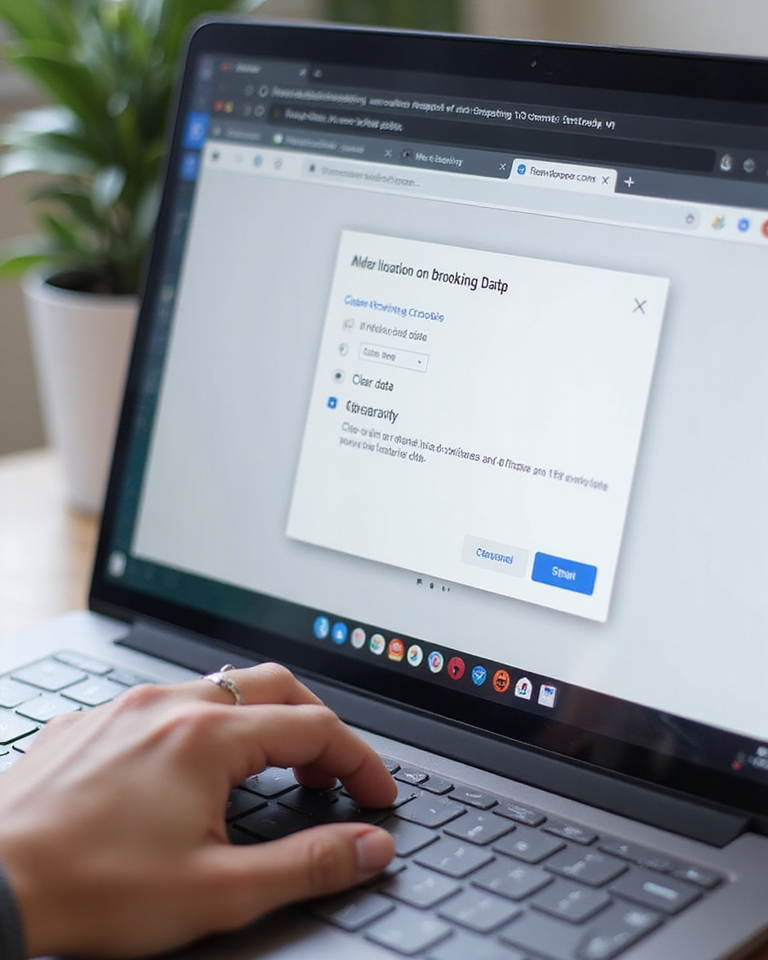
Step-by-Step Example: Clearing Cookies in Google Chrome (Windows 10)
Let’s walk through an example of clearing cookies on Google Chrome running on Windows 10:
- Launch Google Chrome.
- Click the three-dot menu button at top right.
- Choose Settings.
- From the sidebar, select Privacy and security.
- Click Cookies and other site data.
- Click See all cookies and site data.
- Click Remove all to delete all cookies.
- Confirm the action by clicking Clear all.
- Close the Settings tab and restart Chrome if desired.
- Visit your frequently used sites and log in again as needed.
Frequently Asked Questions (FAQ)
Q1: Will clearing cookies delete my saved passwords?
No, clearing cookies does not delete saved passwords stored in your browser’s password manager. However, you will need to log back into websites because session cookies will be removed.
Q2: How often should I clear cookies?
It depends on your privacy needs and browsing habits. Many users clear cookies once every few weeks or months. Clearing too often may be inconvenient because of repeated logins.
Q3: Does clearing cookies improve browser speed?
It can help if you have an excessive buildup of cookies, but often cookie files are small and don’t significantly impact speed. Clearing cache and unnecessary extensions may help more.
Q4: Can I clear cookies on my phone the same way as on my computer?
Yes, mobile browsers provide similar options to clear cookies. The steps vary slightly by browser and platform, but the general approach is the same.
Q5: Will clearing cookies remove all tracking?
No, some trackers use advanced techniques beyond cookies. For enhanced privacy, consider blocking trackers using browser settings or privacy tools.
Additional Tips for Managing Cookies and Browser Privacy
Beyond clearing cookies, there are several other steps you can take to maintain better privacy and control over your browser data.
Use Browser Extensions That Manage Cookies
There are many browser extensions available that help automate cookie management. Some popular examples include cookie auto-deleters that remove cookies from closed tabs, or extensions that whitelist cookies from trusted sites while deleting others. These tools can save time and enhance privacy without manual cleanup.
Enable Do Not Track Features
Most modern browsers offer a “Do Not Track” option that sends a request to websites not to track your browsing activity. While not all sites honor this request, enabling it in your browser’s privacy settings adds a layer of protection.
Regularly Update Your Browser
Keeping your browser up to date ensures you have the latest security patches and privacy improvements. Browser developers often enhance cookie management features, so frequent updates help you maintain better control.
Consider Using Private Browsing Modes
Browsers’ private or incognito modes prevent cookies and browsing data from being saved after you close the window. Use these modes for sensitive browsing sessions where you want maximum privacy without clearing cookies afterward.
Understanding the Difference Between Cookies, Cache, and Browsing History
It’s important to distinguish between cookies, browser cache, and browsing history, as they serve different purposes and clearing them affects your browsing experience in unique ways.
- Cookies: Store small pieces of data from websites, used for login sessions, preferences, and tracking.
- Cache: Stores copies of web pages, images, and other content to speed up loading times on subsequent visits.
- Browsing History: A record of all websites and pages you’ve visited.
Clearing cookies removes stored data that websites use to identify you, but it doesn’t clear cached content or browsing history unless you select those options separately. Understanding these differences can help you decide what to clear to solve specific issues or protect your privacy.
How to Backup Important Cookies Before Clearing
For advanced users or those who rely on specific cookies for login sessions or preferences, backing up cookies before clearing can be helpful. While browsers don’t provide an in-built feature to export cookies, there are third-party tools and extensions for some browsers that allow exporting cookies to a file. Later, these can be imported to restore the session. Use these with caution and ensure files are stored securely to prevent unauthorized access.
How Cookies Affect Ad Personalization
Cookies are significant in how online advertising targets users. Advertisers use cookies to track browsing behavior and deliver personalized ads. Clearing cookies resets this data, which may reduce personalized ads temporarily but does not delete your profile stored on advertiser servers. For deeper privacy, combining cookie clearing with ad-blockers or tracker blockers provides better control over ad personalization.
Summary of Key Points
- Cookies store website data to remember users and preferences, but can pose privacy and performance issues.
- Clearing cookies logs you out of sites and removes stored preferences, so prepare accordingly.
- All major browsers have straightforward options to clear cookies either entirely or selectively.
- Mobile devices support cookie clearing, though steps vary slightly by platform and browser.
- Selective cookie clearing helps maintain convenience while solving site-specific problems.
- Additional privacy tools and browser settings can enhance cookie management beyond clearing.
- Understanding browser data categories and careful management leads to better browsing privacy and performance.
Conclusion
Clearing computer cookies is an important maintenance task that helps protect your privacy, improve browser performance, and resolve website issues. By following the step-by-step instructions in this 2026 guide, you can easily clear cookies on your preferred browser and device safely and effectively. Remember to prepare for the consequences, like logging back into sites, and consider using selective cookie clearing for better control. With a bit of practice, managing your cookies becomes a simple and useful part of your digital hygiene routine.
Leave a Reply